How to Pixelate an Image: 7 Free Methods That Actually Work
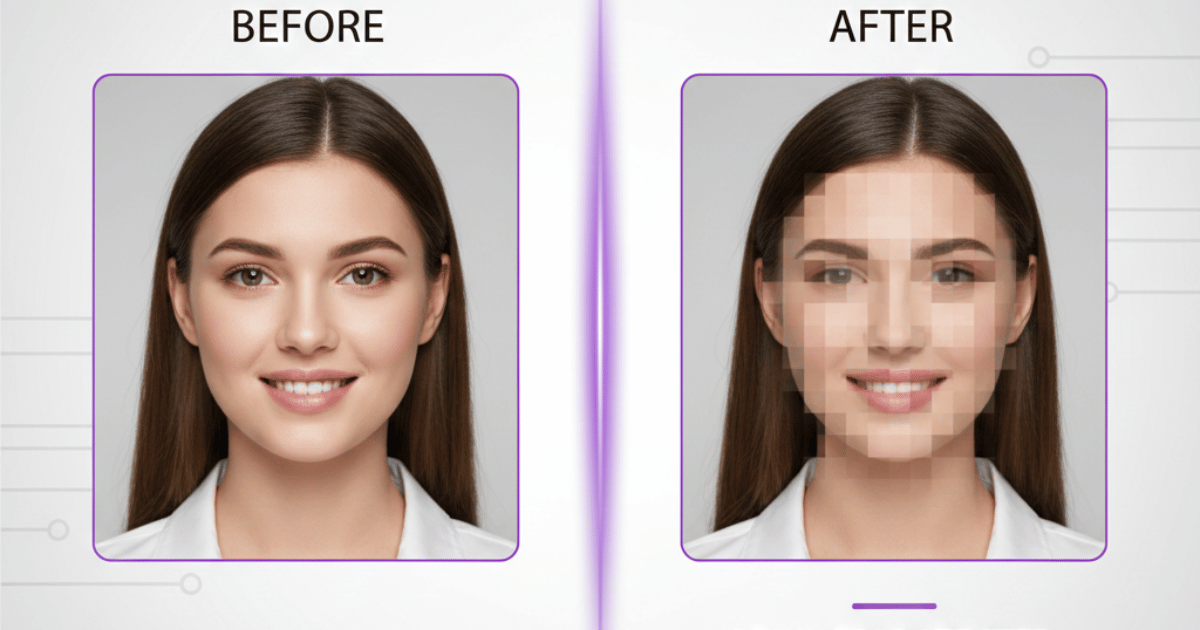
Sometimes you have to post an image on social media platforms like Facebook and Instagram, but you need to blur certain parts for privacy reasons. Whether you're blurring license plates in street photography, censoring sensitive information in screenshots, or creating retro pixel art for a design project, knowing how to pixelate an image is one of those skills you don't think you need until you desperately do.
However, you don't even need to download anything.
This guide covers seven different ways to pixelate images across every device and budget, from free browser tools to professional desktop software. We'll also cover when pixelation is the right choice.
Why Pixelate an Image?
Pixelation isn't just about making things look blocky. It solves real problems.
Privacy Protection
This is the biggest one. If you're publishing photos that include other people's faces, license plates, addresses, or personal information on screens, pixelation is the go-to method for censoring that data. Under regulations like GDPR in Europe, sharing identifiable images of bystanders without consent can carry real legal consequences.
Content Moderation
Social media managers, bloggers, and journalists regularly pixelate sensitive portions of screenshots or photos before publishing.
7 Ways to Pixelate an Image
Here are the seven ways to pixelate an image using different tools:
1. How to Pixelate an Image in Photoshop
Photoshop gives you the most control over pixelation, but you need to purchase its subscription. If you're already paying for Creative Cloud, though, this is the best method.
Step-by-Step Guide:
- Open your image in Photoshop.
- Convert the layer to a Smart Object first. Go to Filter → Convert for Smart Filters. This makes your edits non-destructive, meaning you can undo or adjust the pixelation later without starting over.
- Navigate to Filter → Pixelate → Mosaic. A preview window will open.
- Adjust the Cell Size slider. Lower numbers create smaller blocks. Higher numbers create larger blocks. For face censoring, a cell size between 10 and 20 is usually fine.
- Click OK, then save your image.
Pixelating Just Part of an Image in Photoshop
Follow the steps below to pixelate only a specific area:
- Apply the Mosaic filter to the entire image using the steps above.
- Click the Smart Filters mask in the Layers panel.
- Use the Eraser tool to remove pixelation from areas you want to keep clear.
- For precise selections, use the Lasso or Marquee tools to select and delete the effect from specific regions.
You can also go the other direction: use Select → Subject to auto-select the main subject, then Select → Inverse to pixelate everything except your subject. Handy for background censoring.
2. How to Pixelate an Image in GIMP (Free Desktop Alternative)
GIMP is the open-source answer to Photoshop, and it handles pixelation surprisingly well. It runs on Windows, Mac, and Linux, completely free.
Step-by-Step Guide:
- Download and install GIMP if you haven't already.
- Open your image in GIMP (File → Open).
- To pixelate the entire image, go to Filters → Blur → Pixelize.
- Adjust the Pixel width and Pixel height in the dialog. Check the Preview box to see the effect in real time before committing.
- Click OK and export your image (File → Export As).
Pixelating a Specific Area in GIMP
Use the Rectangle Select, Ellipse Select, or Free Select tool to highlight the area you want to pixelate. Then apply Filters → Blur → Pixelize to just that selection. Only the selected region gets the effect; everything else stays sharp.
Note: GIMP's learning curve is steeper than most online tools. The interface can feel cluttered if you're used to simpler editors. But for a free desktop app with full pixelation control, it's hard to beat.
3. How to Pixelate an Image in Canva
Canva doesn't have a built-in pixelation tool, but it does have integrated apps that handle it. This method works great if you're already using Canva for design work.
Step-by-Step Guide:
- Open Canva in your browser and start a new design or open an existing project.
- Upload the image you want to pixelate.
- Click on the image, then go to Apps in the left panel.
- Search for "Pixel" in the apps search bar. You'll find apps like Pixelfy and similar pixelation tools.
- Select your pixelation app. Most have a Pixel Scale slider; drag it to control how blocky the image gets.
- Once you're happy with the result, click Replace to apply the effect, then download your image.
The disadvantage: Canva's pixelation apps are third-party integrations, so the quality and options vary. You also can't pixelate just a portion of an image the way you can in Photoshop or GIMP. For full-image pixelation or pixel art effects, though, Canva gets the job done quickly.
4. How to Pixelate an Image on iPhone
If you're working from your phone, you might not even need to download an app. iPhones have a built-in option that most people don't know about.
Using the Built-in Markup Tool:
- Open the Photos app and select the image you want to edit.
- Tap Edit, then tap the Markup icon (the pen tip icon).
- Look at the bottom toolbar. You'll see five drawing tools. Find the Pixel Eraser, it's the white brush with a pink head. Double-tap it to make sure "Pixel Eraser" mode is selected.
- Brush over the areas you want to pixelate. Each stroke transforms that area into visible pixel blocks.
- Tap Done to save your edited image.
Quick tip: This method works best for small areas like faces or text. If you want to pixelate the entire image for an artistic effect, a dedicated app will give you more control.
5. How to Pixelate an Image on Android
Android doesn't have a built-in pixelation tool like iPhone's Markup, but several free apps fill the gap effectively.
Using Google Photos Markup:
- Open Google Photos and select your image.
- Tap Edit, then look for the Markup option (pen icon).
- Use the highlighter tools to draw over sensitive areas, while not true pixelation, it effectively obscures content.
Using the "Blur & Mosaic" App (Free on Google Play):
- Download "Blur & Mosaic" from the Play Store (free with ads)
- Open your image in the app
- Select the Mosaic mode
- Adjust the pixel block size and brush size
- Draw over the areas you want to pixelate
- Save the result to your gallery
6. How to Pixelate an Image Online (No Downloads)
The fastest method for most people. You don't have to download any tools or software. Just upload, pixelate, and your image is ready to download. On top of that, you don't have to create an account.
Follow these steps:
- Search for the pixelation tool and open any tool that appears.
- Upload your image.
- Adjust the pixel block size slider.
- Click Pixelate.
- Download the results.
Pixelation vs. Blurring: Which Should You Use?
People often use "pixelate" and "blur" interchangeably, but they're actually different effects, and the right choice depends on your goal.
| Feature | Pixelation | Blurring |
|---|---|---|
| Look | Blocky, grid-like squares | Soft, smeared, out-of-focus |
| Best for | Censoring text, hiding small details, pixel art | Hiding faces, background defocus, subtle privacy |
| Reversibility | Harder to reverse-engineer | Easier to partially reverse with AI tools |
| Aesthetic | Retro, digital, deliberate | Natural, photographic, subtle |
| Common in | News media, screenshots, game art | Portrait photography, real estate, social media |
Key takeaway: If your goal is privacy, pixelation is generally more secure than blurring. Research has shown that AI tools like DeepFaceLab can sometimes reconstruct blurred faces, but pixelated faces are harder to recover because the pixel data is permanently replaced, not just averaged.
Tips for Better Pixelation Results
Here are the tips for better pixelation results:
Choose the right block size
Too small, and the censored content might still be readable. Too large, and the entire image looks messy. For text, start with a block size that's at least twice the character height. For faces, aim for blocks large enough that individual features (eyes, mouth) are indistinguishable.
Don't rely on pixelation alone for sensitive data
If the underlying text is simple (like a short number or name), determined viewers can sometimes guess the content from pixel patterns. For truly sensitive data, consider using a solid color block overlay instead.
Check your work at full resolution
Pixelation that looks thorough when zoomed out might reveal details at 100% view. Always zoom in to verify before publishing.
Save in PNG format
If you need to maintain the sharp edges of pixel blocks, save in PNG format. JPEG compression can soften pixel edges, which actually makes the censored content slightly easier to analyze.
Keep your original files
Pixelation is permanent once saved. Work on copies, not your originals. You might need the unedited version later.
Pick Your Method and Get Started
The seven methods here cover every scenario: quick phone edits when you need to censor something before sharing on social media, free browser tools for one-off tasks, and professional desktop software for precise control or batch work.
For most people, an online tool handles 90% of pixelation needs in under a minute. If you find yourself pixelating images regularly for a blog, client work, or content moderation, investing time in learning GIMP or Photoshop's selective pixelation features pays off quickly.
Whatever method you choose, remember: always double-check your pixelation at full resolution before publishing. One missed detail can turn a routine photo into an accidental privacy breach.
Frequently Asked Questions
Can I pixelate just part of an image?
Yes. Photoshop, GIMP, and mobile apps like BeautyPlus let you select specific areas to pixelate while keeping the rest of the image sharp.
Is pixelating a photo reversible?
Generally, no. Once you save a pixelated image, the original pixel data in the affected area is permanently replaced. This is why pixelation is preferred over blurring for privacy; it's much harder for AI tools to reconstruct.
What pixel block size should I use to hide faces?
A cell size of 10–20 pixels in Photoshop (or equivalent in other tools) typically works for standard portrait-sized faces. The general rule: if you can't distinguish individual facial features (eyes, nose, mouth), the pixelation is strong enough.
Does pixelating reduce image file size?
Slightly, yes. Pixelated areas have less color variation, so image compression algorithms can encode them more efficiently. But the difference is usually negligible for a single image.
Can I pixelate multiple images at once?
Photoshop supports batch processing through Actions (record the pixelation steps, then run the action on a folder of images). GIMP has a similar Script-Fu batch processing feature. Most online tools handle one image at a time.
Related Tools
Background Blur
Blur image backgrounds instantly
Image Censor
Censor sensitive content easily
Privacy Protection
Protect privacy in images
JPG vs PNG Guide
Choose the right format
All free. All privacy-focused. Built for real people.